Start With the Right Mindset
Before you open your wallet or touch a single screwdriver, get clear on why you’re building a custom gaming PC instead of buying one off the shelf. For most, it comes down to control over performance, aesthetics, and cost. When you build it yourself, you’re not paying for flashy marketing or bundled bloatware. You’re paying for exactly what you want, nothing more.
That said, it’s not plug and play. Expect to get your hands dirty literally. From deciphering motherboard manuals to figuring out why your RAM isn’t posting, there will be hiccups. This is normal. Building a PC is part technical challenge, part rite of passage.
If you’re patient, the payoff is big. Dollar for dollar, you’ll get more performance than a prebuilt system especially if you know how to bargain hunt and time your purchases. But understand that the savings come bundled with a learning curve. Watch some video guides. Read a few threads. Mistakes aren’t fatal, but prep is your best friend. Dive in with curiosity, not urgency.
Understand Your Core Components
If you’re building a gaming PC, your performance lives and dies by three key parts: the CPU, GPU, and motherboard.
The CPU (central processing unit) handles pretty much everything game logic, loading, background tasks. Think of it as the brain. Go for at least a 6 core processor if you want decent gaming life. The GPU (graphics processing unit) is your muscle. It’s what pushes out the frames, and if you game above 1080p or want high refresh rates, you’ll need to make it a priority. Nvidia and AMD both have strong options depending on your budget. As for motherboards, they don’t directly boost your FPS, but they determine what your system can support RAM speed, storage choices, and upgrade paths. Don’t cheap out here; get one that matches your CPU socket and gives you room to grow.
Next up: RAM, storage, and power. For smooth gaming and multitasking, 16GB of RAM is now the baseline. DDR5 is faster but pricier; DDR4 still holds up. SSDs (solid state drives) cut load times to nearly nothing get at least one for your operating system and main games. The PSU (power supply unit) doesn’t look exciting, but a bad one can fry your system. Stick to trusted brands and make sure the wattage covers your GPU’s needs. Finally, cooling matters more than people think. Whether air or liquid, good cooling keeps your components running faster and lasting longer.
Budget wise, prioritize GPU > CPU > everything else. But don’t go all in if it limits future upgrades. Leave breathing room more RAM slots, an extra M.2 slot, wiggle room in your PSU. This isn’t just building for now. It’s setting yourself up for the long game.
(Learn more: computer components basics)
Step 1: Gather All Your Parts
Before you spend a single dollar, get clear on what you’re building this rig for. Are you playing low demand titles like Valorant or firing up Cyberpunk 2077 at 1440p ultra? Your game list, target resolution, and desired frame rate will determine everything from GPU muscle to cooling power.
Start by building a list of components based on performance needed, not just hype. And stick with brands that have solid reviews and proven dependability. Think NVIDIA or AMD for GPUs, Intel or AMD for CPUs, and known players like ASUS, Gigabyte, or MSI for motherboards. Then, make sure all your parts are compatible RAM speed, CPU socket, clearance inside the case. A quick check using a site like PCPartPicker saves you from expensive mismatches.
Finally, tools. You don’t need a full workshop. A Phillips head screwdriver takes care of 95% of the job. Optional but nice to haves: anti static wrist strap, thermal paste (if not pre applied), and a small flashlight or headlamp. Keep it minimal, keep it efficient.
Step 2: Prep Your Workspace
Before you crack open any boxes, make sure your setup isn’t working against you.
First up anti static. This part gets ignored too often. Static electricity can fry electronic components in seconds. Do yourself a favor and ground yourself. You don’t need fancy gear; an anti static wrist strap clipped to your case works. At the very least, touch something metal (like your case or a grounded object) before handling parts. Avoid carpeted areas. Socks plus carpet equals risk.
Clear your desk completely. Only the tools and parts should be in front of you. Pet hair, dust, food crumbs those are your enemies today. Go minimal.
Lighting matters more than you think. No one wants to squint at motherboard pins or cable headers under a dim desk lamp. Natural light is great. If it’s dark out, crank up a task light you can adjust easily.
Finally, make sure your desk is sturdy. You don’t want your build dancing every time you press a slot into place or screw something in. The steadier the surface, the safer the build.
Treat this like surgery prep. Get it right, and the rest of the job flows smoother.
Step 3: Install the CPU, RAM, and Cooler
Now that your workspace is prepped, it’s time to bring your motherboard to life. This is one of the most hands on parts of the build, so work with care and patience.
Secure the CPU (Carefully)
The CPU (Central Processing Unit) is the brain of your PC. Installing it correctly is vital:
Check the CPU socket type matches your CPU (e.g., LGA or AM4)
Align the triangle marker on the CPU with the socket indicator
Gently place the CPU without force it should drop into place
Lock it in by lowering the retention arm until it clicks
Tip: Never touch the CPU pins avoid static and keep hands clean.
Slot in Your RAM Like a Pro
RAM (memory) installs directly into the motherboard’s DIMM slots:
Refer to your motherboard manual for the correct slot configuration (especially for dual channel setups)
Open the clips on both ends of the RAM slots
Align the notch on your RAM with the slot and push down firmly until it clicks
Quick Check: RAM sticks should sit evenly uneven angles mean it’s not seated properly.
Apply Thermal Paste (Only the Way It Needs)
Thermal paste helps your CPU cooler transfer heat efficiently from the CPU:
If your cooler includes pre applied paste, you can skip this step
If applying manually, place a small pea sized dot in the center of the CPU
Avoid spreading or over applying the cooler will apply even pressure when mounted
Wrong Moves: Too much paste can result in spillage and overheating.
Mount the CPU Cooler Firmly
Once thermal paste is applied:
Position the CPU cooler according to your motherboard layout
Align mounting brackets or screws with the CPU socket
Apply even pressure while tightening screws diagonally in a criss cross pattern
Final Touch: Connect the CPU cooler’s fan cable to the CPU_FAN header on the motherboard.
With the CPU, RAM, and cooler properly installed, your motherboard is now looking ready for action.
Step 4: Mount the Motherboard
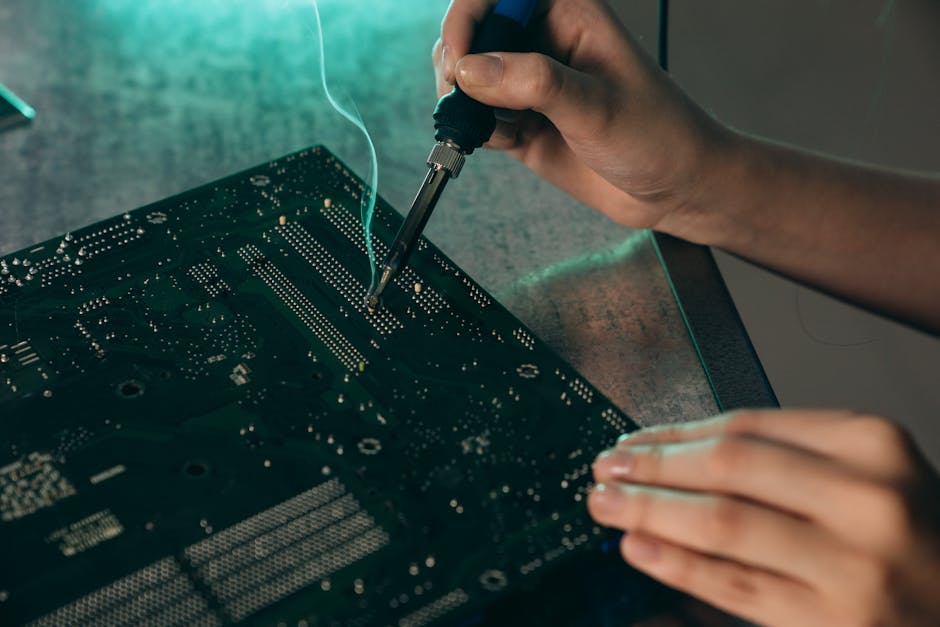
This part is all about precision, not force. Start by making sure your case has the correct standoffs installed the small metal risers that keep the motherboard elevated and prevent it from shorting out against the case. Each hole in the board should line up cleanly with a standoff underneath. If one doesn’t, double check your case layout and remove or relocate extra standoffs that don’t match those can cause serious issues if left in the wrong spot.
When you’re ready to mount, hold the motherboard by its edges. Lower it slowly into position, letting the rear I/O ports slide into the shield. You want a clean drop; don’t force anything. Once it’s lined up, start screwing it down with the screws that came with your case. Tighten each screw just enough to hold the board firmly no need to overdo it. Work in a diagonal pattern if possible to keep pressure even during install.
Bottom line: stable, flush, no warped PCB. Mount it right, and the rest of your build gets a solid foundation.
Step 5: Add Storage and GPU
Once you’ve mounted your motherboard, it’s time to install your storage and graphics card. This step brings the power and performance to your build, so take it slow and make sure everything clicks literally.
Install Your Storage
Whether you’re using SSDs, HDDs, or a combination of both, proper installation ensures speed and reliability.
Types of Drives to Consider:
M.2 NVMe SSD: Mounts directly onto the motherboard. Fastest option.
2.5″ SATA SSD: Great speed upgrade over traditional HDDs, uses SATA data and power cables.
3.5″ HDD: Slower but offers large storage for less money.
Installation Steps:
For M.2 drives, locate the M.2 slot on your motherboard.
Insert the drive at an angle.
Press it down gently and secure with the provided screw.
For SATA SSDs or HDDs:
Mount them in your case’s drive bays.
Connect SATA data cable to your motherboard.
Connect SATA power cable from the PSU.
Install the Graphics Card (GPU)
Your GPU handles most of the graphical workload and is essential for gaming.
Steps to Install:
Locate the correct PCIe x16 slot on your motherboard (usually the top one).
Remove any PCI slot covers on the case that would block access.
Line up the metal bracket of the GPU with the case openings.
Firmly press the GPU into the PCIe slot until you hear a satisfying ‘click.’
Secure the GPU to the case using screws.
Connect power cables from the PSU if your GPU requires external power (6 pin, 8 pin, etc.).
Pro Tip: Always ensure the GPU is fully seated you’ll feel resistance, and the clip on the motherboard will lock into place.
You’re now one step closer to powering up your build. Next up: giving it the juice it needs.
Step 6: Power It All
Time to give your system its heartbeat. Start by mounting the power supply unit (PSU). If you’re using a modular PSU, great you only plug in the cables you need, which keeps clutter down. With a standard (non modular) PSU, all the cables are permanently attached, so you’ll need a little more patience with cable management. Either way, the PSU typically goes at the bottom of the case, fan facing down or out depending on airflow design.
Once it’s in, route your cables with intention. Keep them away from airflow paths especially your case fans and CPU cooler. Use the cutouts and channels built into your case to snake power cables behind the motherboard tray. It may not be glamorous, but clean cable routing helps with cooling and makes future tweaking way easier.
Plug the necessary connectors into your motherboard: 24 pin main power and 8 pin CPU power (sometimes 4+4). If your GPU needs power, connect those PCIe cables too. Double check each plug is firmly seated. A loose power cable is an easy way to sabotage a first boot and trust us, that’s no fun to troubleshoot.
Step 7: Boot and Test
Now that everything’s plugged in and screwed down, don’t hit the power button just yet. First, double check every connection. That includes your 24 pin motherboard power, CPU power (usually an 8 pin connection at the top of the board), GPU power cables, SATA or NVMe storage, and front panel headers. Take your time here one loose cable can waste hours of troubleshooting.
When you power on, look for the POST (Power On Self Test) screen. If nothing shows up, don’t panic. Check for error lights or beep codes if your motherboard supports them. Common fixes: re seat the RAM, make sure your monitor is actually plugged into the graphics card (not the motherboard), and remove and reinstall the GPU.
Once you get that BIOS screen, you’re halfway there. Inside BIOS, make sure your memory and storage are recognized. Set your boot priority to your USB drive if you’re doing a fresh OS install. Enable XMP for faster RAM speeds if that’s an option.
From there, install your operating system Windows or Linux, up to you. After that, download and install your motherboard chipset, GPU, and network drivers. Skip the random junk utilities and go straight for the essentials. This first boot sets the foundation, so take it seriously.
When it’s done right, your system should boot fast and run clean. Solid start for what’s next: gaming, streaming, editing whatever you built this rig to crush.
Last Notes and Upgrade Options
Building your custom gaming PC doesn’t stop once it powers on. Great airflow, visual impact, and future upgrade paths are what elevate a good build to a great one. Here are a few finishing touches to consider:
Add Personality with RGB (If You’re Into It)
Some builders care about clean aesthetics, others want their rig to glow like a spaceship. If you’re in the latter group:
Use RGB lighting strips or fans for ambient glow
Sync via motherboard software (like ASUS Aura, MSI Mystic Light, etc.)
Avoid overdoing it clean visuals still matter
RGB adds zero performance, but it can reflect your personality and make your build stand out.
Cable Management: Take the Extra 15 Minutes
Tight, tidy cables do more than look good they improve airflow and make future work way easier.
Route cables behind the case’s motherboard tray
Use zip ties or Velcro straps to bundle wires
Group similar cables together for faster troubleshooting later
A messy build today is a frustrating project later.
Plan for Easy Upgrades
The beauty of a custom PC is how upgradeable it is. Even if you start mid range, your build can evolve over time.
Add more RAM if multitasking or future games demand it
Swap your GPU when newer models drop or prices dip
Go dual SSD for more space and faster loading times
Keeping upgrade paths open ensures your rig stays relevant without needing a full rebuild.
Also see: computer components basics